Getting old Java phones online again
tech j2me phone bluetooth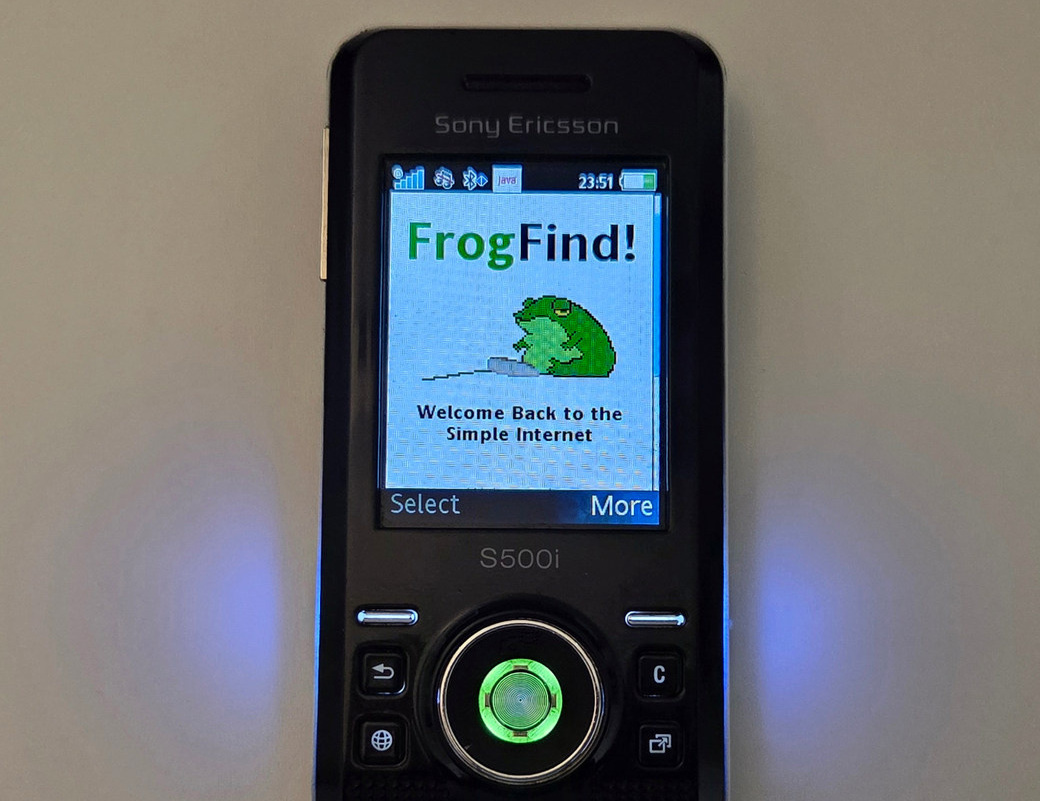
Background
Recently, I bought a used Sony Ericsson S500i – one of the most beautiful phones IMO. I vividly remember getting online on this phone while away from home and downloading games from the Sony Ericsson shop (and the exorbitant mobile data charges that came with it!).
But when I tried using it again in 2026, I couldn’t connect to the mobile network. Even though I had a SIM card compatible with the phone, 2G had been shut down for some time, leaving no way to access the Internet over a mobile connection.
USB wasn’t an option either. On many phones of this era, USB tethering was designed to share the phone’s Internet connection with a computer, not the other way around1. But there is a way…
Getting online via Bluetooth
Bluetooth supports various profiles, which define how devices use Bluetooth for specific purposes. One of these is Personal Area Networking (PAN), which allows devices to communicate over Bluetooth as if they were connected to an Ethernet network.
PAN carries Ethernet frames over Bluetooth, including IP traffic. This allows a device acting as a PAN User (PANU) to access the Internet through another device acting as a Network Access Point (NAP). The NAP forwards the traffic to the Internet, much like a Wi-Fi hotspot, but over Bluetooth instead2.
Although Bluetooth PAN is much less common nowadays, many devices still support the profile. One common use case was sharing a phone’s mobile Internet connection with a laptop. But why not reverse the direction? We can use a network-connected computer as a NAP and access the Internet from an old Java phone, provided the phone supports PANU3.
Setting up Bluetooth NAP on Raspberry Pi 5
From what I’ve seen on forums, many older Sony Ericsson, Nokia, and other phones seem to support PANU even if it is not mentioned in the documentation. I couldn’t find any confirmation for the S500i, so I decided to give it a try by setting up a Bluetooth NAP and seeing whether the phone could connect.
I used Linux for this, but I’m sure you Windows and Mac wizards can figure out how to make it work on your systems too.
Note: After finishing this blog, I found out that there is a way to do the same thing on Windows, see: Getting old Java phones online again (Windows Edition).
I found an old guide showing how to get a Sony Ericsson K800i online over Bluetooth using Debian Etch3. While the basic idea still works, the guide relies on tools and configurations that are long obsolete. I worked out a different approach using modern BlueZ and NetworkManager, without the old scripts and manual network configuration.
I bought a Raspberry Pi 5 a few years ago to run small services at home, and it turned out to be a great fit for this project. Raspberry Pi boards have had built-in Bluetooth since the Raspberry Pi 3 Model B, so there’s no need for any additional Bluetooth hardware4.
Modern devices mostly don’t advertise the Bluetooth NAP service by default, so the following steps show how to enable it explicitly.
Note: This guide is written for Raspberry Pi OS based on Debian 13 (Trixie), but I also tested the setup on my ThinkPad E14 running Arch Linux, and it worked there too. It should work on any other Linux distribution with BlueZ and NetworkManager, although package installation and service management may differ.
- Install Bluez and NetworkManager (usually, installed by default).
sudo apt update sudo apt install -y bluez network-manager - Enable Bluetooth.
sudo systemctl enable --now bluetooth - Create a Bluetooth NAP profile and share the Internet connection.
 sudo nmcli connection add \
     type bluetooth \
     con-name "Bluetooth-NAP" \
     ifname btnap0 \
     bluetooth.type nap \
     ipv4.method shared \
     ipv6.method disabled
This configuration enables IPv4 sharing through NetworkManager. The Raspberry Pi acts as a gateway for devices connected over Bluetooth, assigning IP addresses and forwarding their traffic to the Internet. It works with either an Ethernet or Wi-Fi connection.
- Activate the created profile.
sudo nmcli connection up "Bluetooth-NAP" - (Optionally) Enable automatic activation on boot.
sudo nmcli connection modify "Bluetooth-NAP" connection.autoconnect yes -
Verify that the NAP service is available.
bluetoothctl showLook for:
UUID: NAP (00001116-0000-1000-8000-00805f9b34fb)This indicates that BlueZ has registered the NAP service.
Connecting the S500i
-
Enable Bluetooth on the phone and make it discoverable.
-
Pair the Raspberry Pi with the phone using bluetoothctl.
- Start the Bluetooth control utility:
bluetoothctl -
Configure the Raspberry Pi to accept pairing requests:
  power on
  agent off
  agent KeyboardDisplay
  default-agent
  pairable on
  discoverable on
Note: Run each command separately in the interactive bluetoothctl prompt
- Start scanning for nearby Bluetooth devices:
scan on -
Look for your phone in the output.
It should appear under the name configured on the phone. For example:
[NEW] Device 00:23:F1:XX:XX:XX S500i - Disable the scanning:
scan off -
Pair the Raspberry Pi with the phone.
pair 00:23:F1:XX:XX:XXReplace the example address with your phone’s actual Bluetooth address. Enter the same PIN on both devices. If everything goes well, bluetoothctl will report that pairing was successful.
-
Mark the phone as trusted on the Raspberry Pi:
trust 00:23:F1:XX:XX:XXThis allows the Raspberry Pi to authorize future supported connections from the phone without repeatedly asking for approval.
- Start the Bluetooth control utility:
Accessing the Internet from a Java phone
This part is phone-specific because it requires changing the phone’s Internet settings. The menu names and available options may differ between models.
-
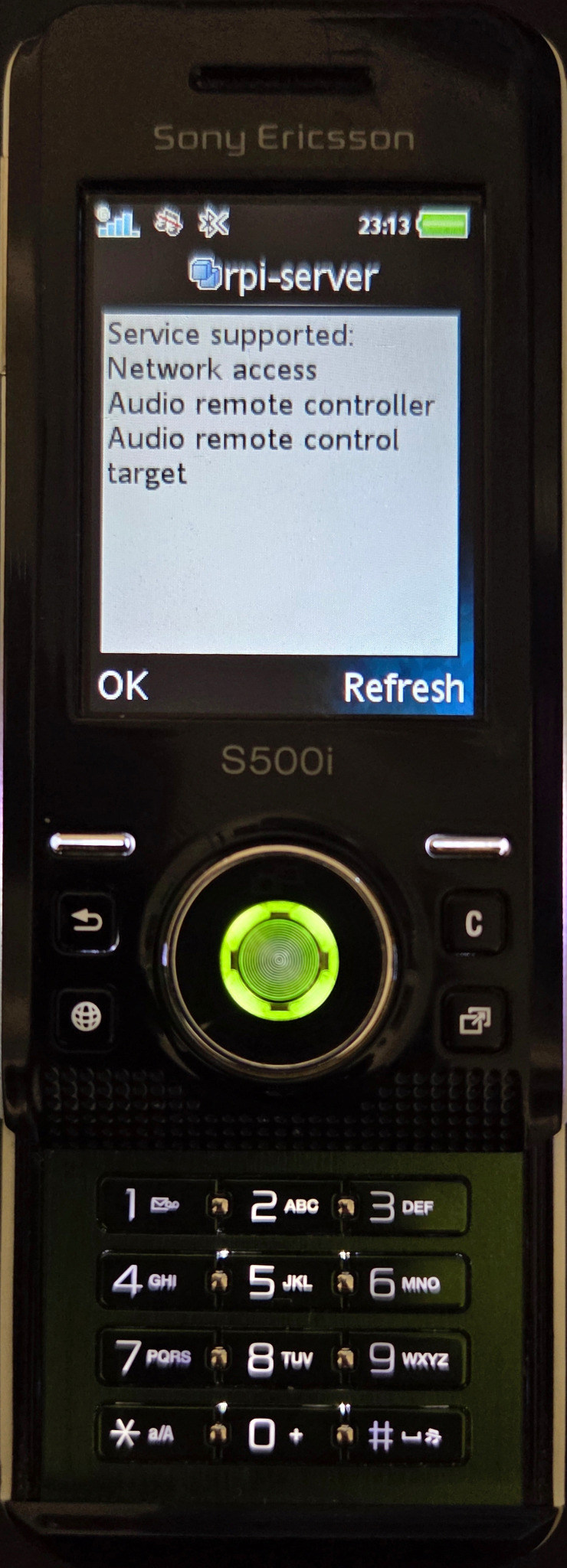
Check that the phone can discover the NAP service.
On the S500i, select Raspberry Pi under
Connectivity / Bluetooth / My devicesand browse its services.Look for
Network access.If it appears, the phone can discover the Raspberry Pi’s NAP service.
-
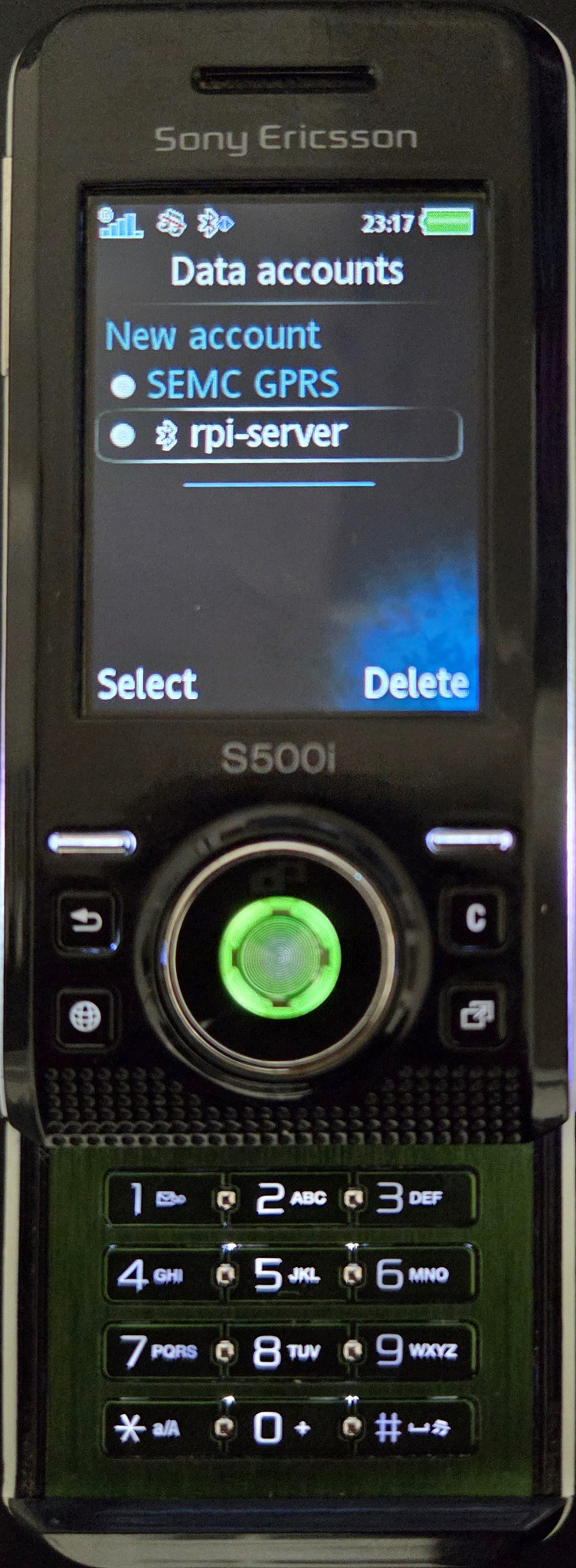
Configure the phone’s Internet connection.
Go to
Connectivity / Internet settings / Internet profiles.Create an Internet profile using the Bluetooth connection if one is available.
Some phones automatically create a Bluetooth data account when a PAN connection is established. The exact behavior varies between models and firmware versions.
-
Test the connection.
Open the phone’s browser and try loading a simple website, like frogfind.com.
While the phone is attempting to connect, run the following command on the Raspberry Pi:
bridge link show master btnap0If you see an interface named bnep0 with state forwarding, the phone has successfully established a Bluetooth PAN connection to the Raspberry Pi.
Hooray! We are on the net!
Browsing the web on the Java phone
You can now go and browse the Web. Well, at least a very small part of it.
Most of the default links in the Sony Ericsson browser no longer work, but, for example, good old frogfind.com works just fine.
If you want a more modern, feature-rich alternative to the default browser, there is another option. By some miracle, Opera still provides download links (archive) for Opera Mini 4.5 for Java phones on its official website, which is just incredible. Even better, many of its default links still work and serve today’s news!
Unlike the Sony Ericsson’s built-in browser, Opera Mini 4.5 can also access modern HTTPS websites through Opera’s proxy servers, which handle encryption and process webpages before sending them to the phone5. This makes a surprisingly large portion of the modern web accessible, although many websites remain out of reach due to modern web standards, the phone’s limited hardware, and, well, the web being the web.
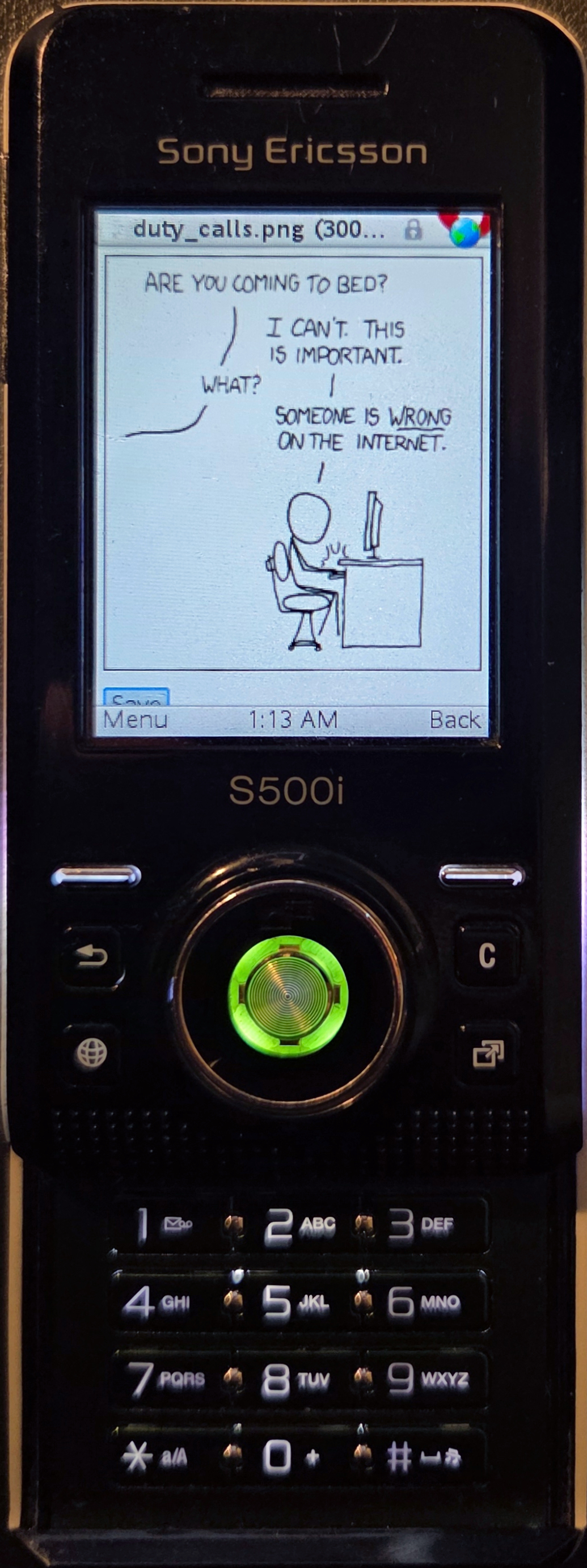
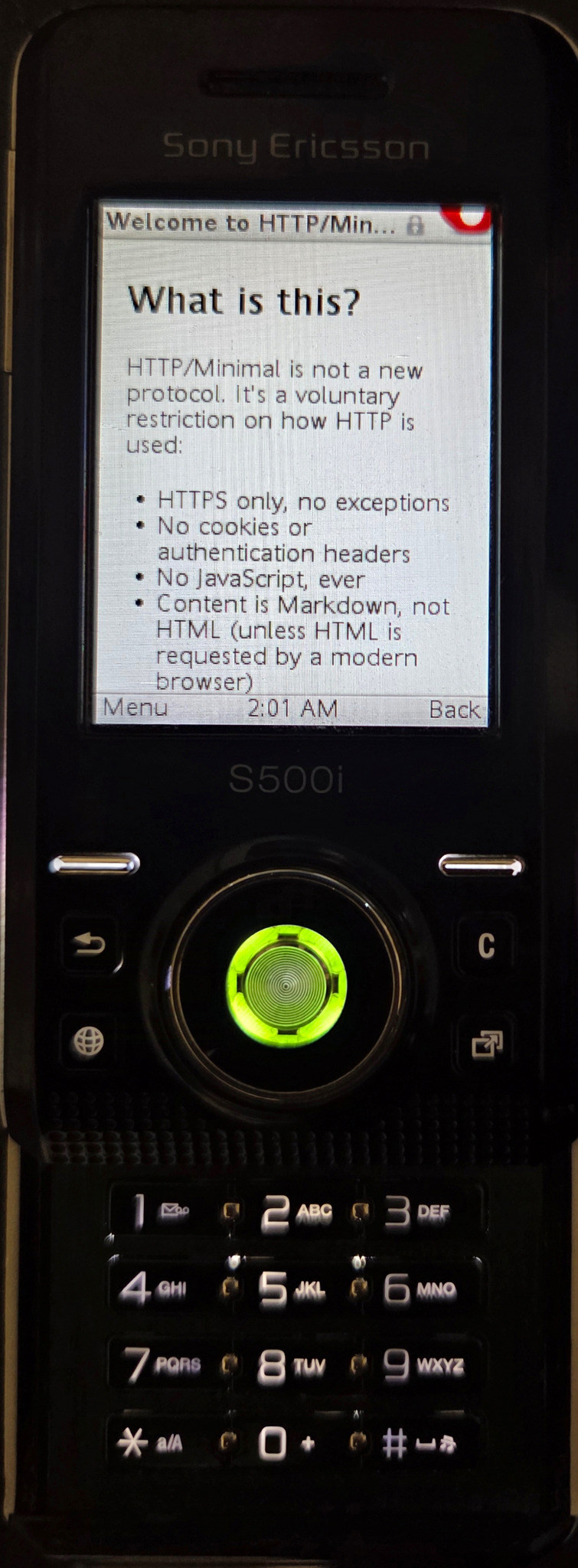
Even with Opera Mini (while it still works), browsing the modern web on a phone this old is still pretty hit-or-miss. Fortunately, there are a couple of projects that make life easier for old browsers:
-
FrogFind – simplifies modern webpages into basic HTML that vintage computers can handle. It turns out to be pretty handy for an underpowered phone from almost 20 years ago, too.
-
ProtoWeb proxy – takes a different approach, bringing back websites from the mid-to-late 1990s through a proxy. Those pages aren’t always convenient to navigate on the S500i’s tiny screen, but then again, browsing the web on phones back then wasn’t exactly convenient either. So it’s a pretty authentic experience!
And then there’s WAP!
There’s another little corner of the web that’s still alive: a small community of enthusiasts keeping old WAP websites running, serving WML pages designed for early mobile browsers. These sites can still be browsed on compatible phones, without relying on an emulator! And maybe it’s time to bring a few more WML sites online…
Closing Words
I watched Action Retro’s video6 about bringing FrogFind to WAP, where he converts the FrogFind homepage into WML for older mobile browsers. Building a small HTML-to-WML converter could be a really cool project. And with Internet access already working over Bluetooth, developing and testing it on physical hardware should be much easier, without having to build an entire 2G network like dosdude1 did7. Of course, this approach won’t work for every old phone, but for those that support Bluetooth networking, it doesn’t require any additional radio hardware.
I’d also love to see a community-maintained list of phones that support Bluetooth PANU, since many manufacturers never bothered to document it (including Sony Ericsson with the S500i). It would make it much easier for anyone to figure out whether their phone can get online this way or whether they’ll need to get a bit more creative ;-)
P.S. Have fun and happy hacking!
Changelog
2026/11/24: Added mention of Windows method